
Advanced Fabric (4) -- Automated Multi-Host Deployment
My earlier posts on deploying Fabric all assumed a single machine. In a real production environment, nodes are usually spread across several physical machines depending on the use case, and the main challenge is how nodes on different hosts communicate over the network.
Introduction
I will again use balance-transfer v1.0 as the example and try to spread the two organizations across two machines on an internal network. The deployment looks like this:
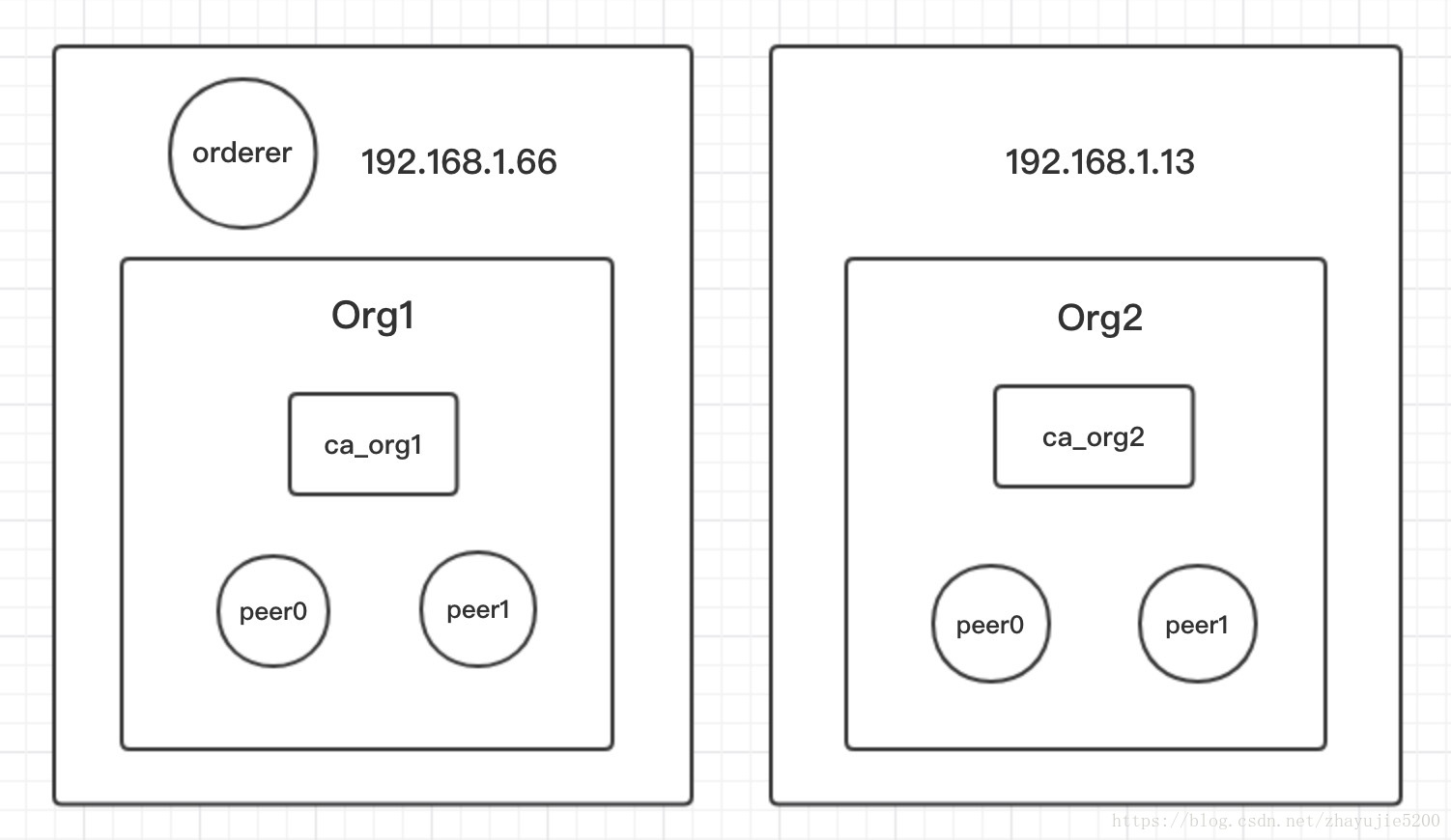
The ordering service runs in solo mode. The orderer and Org1 are on one machine, and Org2 is on the other. Each organization has one CA node and two peers, and the application code is also deployed on the first machine (not shown in the diagram). I only use two machines here to keep things simple; in practice you can put each node on its own physical machine if needed.
With a Kafka-based ordering service, deployment is more complex: you need additional machines for the extra ordering-related nodes to keep the ordering service crash fault tolerant.
Steps
1. Write the docker-compose files
With a single-machine deployment, the configuration of all seven containers lives in one docker-compose.yaml. It now needs to be split into two files so the nodes can be started on the two machines separately.
The split is simple: keep the orderer and Org1's CA node and 2 peers in one docker config file, and keep Org2's CA and 2 peers in the other.
The key point of this step, and of the whole multi-host deployment, is adding the extra_hosts parameter to each peer container. This parameter maps the hostnames of the nodes it needs to connect to onto IP addresses. On a single machine you do not need it, because all containers are on the same machine and the same network and can reach each other by hostname. Once they are on different machines, the IP address must be provided for cross-host communication.
Opinions online differ on how to set extra_hosts. Some say a peer should list the IP addresses of all other nodes. After some testing I found that you only need to set the IPs of the orderer and of other nodes in the same organization that sit on different machines.
Here Org1 is on the same machine as the orderer, and its two peers are not split up either, so it needs no extra_hosts. Org2's two peers only need the orderer's IP to receive blocks normally.
extra_hosts:
    - "orderer.example.com:192.168.1.66"
If Org2's two peers were split across two machines, they would also need each other's IP mappings. The orderer only delivers blocks to the organization's leader peer, so the other peers need to reach the leader to get blocks.
The reason we did not add IPs for other organizations' nodes is that different organizations can only communicate through anchor peers. Without anchor peers configured, adding other organizations' IPs would not help. I will look at setting up anchor peers for cross-organization communication later.
2. Distribute the config files
This step prepares the config files the nodes on the new machine need. We start on machine one by creating an artifacts directory. First copy Org2's MSP directory over from the crypto-config directory, then the two container config files. Finally, if the organization name is not Org1 or Org2, you need to create a CA config file by hand (because the affiliation field has to be changed).
artifacts
    ├── org2.example.com                // MSP directory of Org2
    ├── base.yaml
    ├── docker-compose.yaml
    └── fabric-ca-server-config.yaml    // only needed if the org name is custom
The directory must be named artifacts, because docker-compose up will be run from it later, and the network ID that command creates defaults to the name of the current directory. For the nodes on both machines to be on the same network, the directory names have to match.
docker-compose.yaml also needs adjusting at this point, because the relative path of the MSP directory on the new machine has changed (it is now in the same directory). Note that some parameters in the volumes mappings and environment sections of the CA and peer containers need small tweaks to match the actual paths.
Once everything is ready, send the whole artifacts directory to the new machine. There are several ways to do this: the scp command on the command line, or a remote client like FileZilla transferring files over sftp.
3. Update network-config.json
Next, update the network config file with the IP address of each organization's CA and peers. Since the app is on the same machine as Org1, Org1's node IPs can stay as localhost. Below is the setting for Org2's first peer. The two machines are on the same internal network, so the internal IP is enough.
"peer1": {
    "requests": "grpcs://192.168.1.13:7051",
    "events": "grpcs://192.168.1.13:7053",
    "server-hostname": "peer0.org2.example.com",
    "tls_cacerts": "../artifacts/channel/crypto-config/peerOrganizations/org2.example.com/peers/peer0.org2.example.com/tls/ca.crt"
},
4. Start the nodes on both machines
The new machine needs: the Fabric images (ca, peer, ccenv), docker, and docker-compose. With all the preparation done, you can start the nodes. On both hosts, run the following command in the artifacts directory to start all containers:
docker-compose up -dNext, initialize the network: register users, create the channel, join all peers to the channel, install the chaincode on all peers, and instantiate the chaincode on the channel. You can do this with the runApp.sh script that ships with balance-transfer, or by submitting the requests by hand one step at a time.
At this point the multi-host Fabric network is up. You can check whether the nodes on the two machines maintain the same ledger: send a transaction to an Org1 peer, query on an Org2 peer, and see whether the ledger data stays in sync.
In Practice: Adding Organizations Across Hosts
The multi-host deployment above requires deciding which nodes go on which machines before the Fabric network is created. In real development, the more common situation is that you cannot predict all the network members when the network is first set up. Organizations or nodes on other hosts need to join one by one later, without disrupting the running network.
This combines the two scenarios, multi-host deployment and adding organizations dynamically, to join new organization nodes on new machines to the current network. Adding an organization dynamically was covered in detail in the previous post. Adding an organization across hosts adds some of the steps from this post, and can be summarized as:
- Generate the MSP directory for the new organization, including certificates and private keys;
- Send the request to add the new organization and update the channel configuration (already built as an API on top of the SDK);
- Put the new organization's config files on the target machine, including the MSP directory and container config files;
- Update network-config.json with the new organization's node information;
- Start all containers on the new machine;
- Send requests to join the new organization's peers to the channel and install the chaincode, and upgrade the chaincode if needed.
To make it easier to create a new organization on any host and join it to the network, I wrote some scripts for one-click deployment. The machine needs to run CentOS 7.4+ or Ubuntu 16.04+, and no prerequisites have to be downloaded. There are two directories, deploy and new-org. The new-org directory goes on the server running the application ahead of time (in the root of the App project), and the deploy directory is distributed to each new machine. Deploying a dynamically added organization across hosts then takes just two steps:
1. Copy the deploy directory to the new machine and run the following in that directory:
sudo ./deploy.sh --domain <domain> --order <ordererIP>(domain: the domain of the new organization; order: the IP address of the machine running the orderer)
e.g. sudo ./deploy.sh --domain org2.example.com --order 192.168.1.662. Copy the MSP directory (org2.example.com) generated under deploy/artifacts to the new-org directory on the app server
Then run in the new-org directory:
sudo ./add_org.sh - -org <orgName> --ip <IP>(org: the name of the new organization; ip: the IP address of the new organization's machine)
e.g. sudo ./add_org.sh --org org2 --ip 192.168.1.13After this finishes, the new organization on the new machine has joined the current network.
Note: deploy/pkg holds the required images and packages. If anything is missing, the deploy.sh script downloads it from the network as it runs, so there is no need to set up the environment by hand. After the deployment script runs, the new machine deploys one new organization by default and starts all of its nodes (1 CA, 2 peers, 2 CouchDB). To customize which nodes a host deploys, adjust the script slightly.
All the scripts and config files for deploying organizations across hosts are at: https://github.com/zhayujie/fabric-tools
